

A useful audit trail starts with knowing what QuickBooks Online records: user sign-ins and changes to transactions, settings, and customer, supplier, and employee details. You can review the audit log from the Gear menu or Reports, and its history is available for two years. Following QuickBooks Online audit trail best practices means reviewing activity regularly and preserving records you may need later.
Seeing an audit log is only the starting point. For a Cleveland small business preparing for an external audit, records are most useful when you can connect each change to the person or process behind it, investigate unexpected activity, and keep supporting documents organized with your financial records.
This guide explains what the log captures, how to filter and review entries, and how to export it as a CSV file. You’ll also learn practical ways to organize audit trail records for an external audit, so you can answer questions with a clear record of what changed and when.
Key Takeaways
- Open the audit log from the Gear menu or Reports, then narrow results by user, date, or event to focus your review.
- Use transaction history to understand who changed a transaction, what changed, and when, including activity from automated processes.
- Set a regular review schedule so unusual changes or access patterns are easier to investigate promptly.
- Export audit log records as a CSV and organize them with related financial documentation for easier audit preparation.
- When QuickBooks records need cleanup or ongoing oversight, bookkeeping support can help keep the underlying records clear and consistent.
What is the audit log in QuickBooks Online?
The audit log shows account activity, including transaction changes and sign-ins. Use it to review who acted, what changed, and when, while remembering that it doesn’t capture every kind of account activity.
-
Access the QuickBooks Online Audit Log
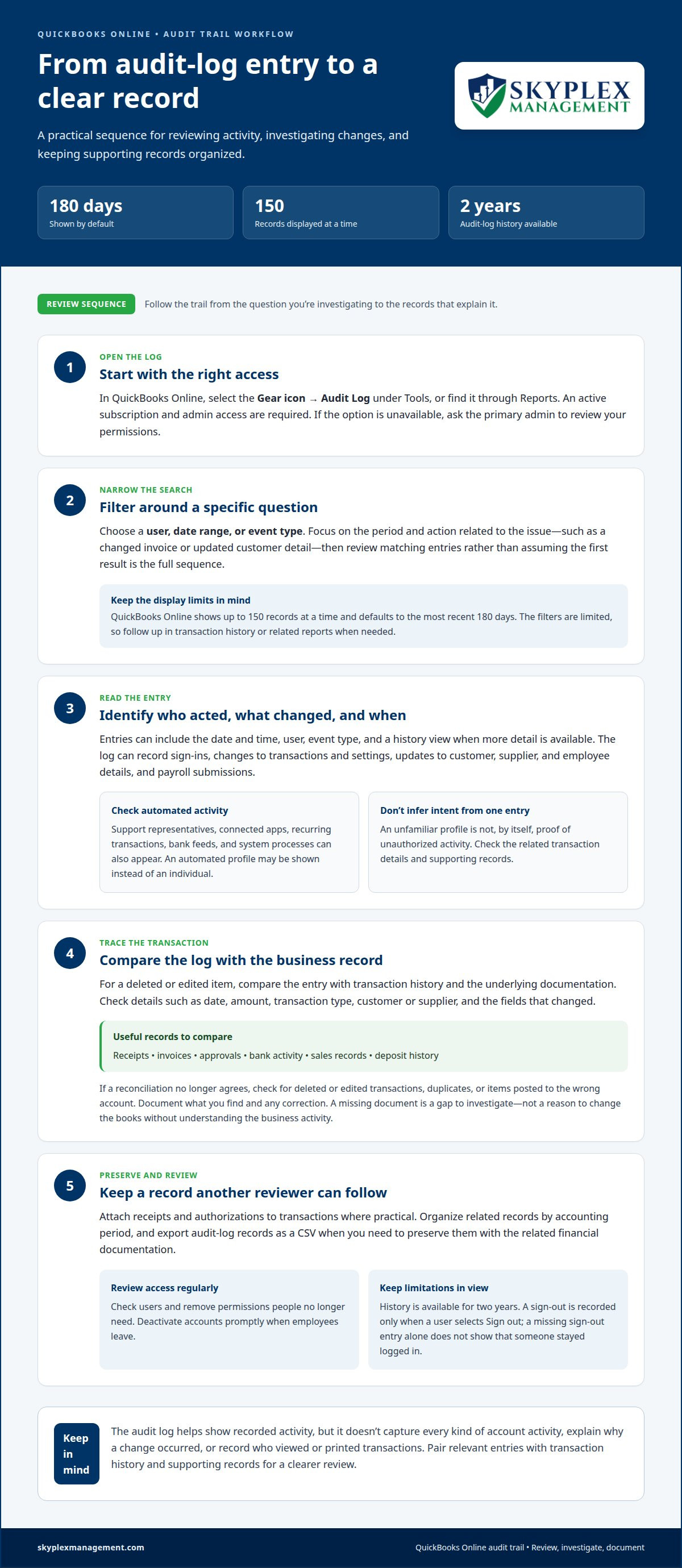
Open QuickBooks Online and select the Gear icon, then choose Audit Log under Tools. You can also find it through Reports. An active QuickBooks Online subscription and admin access are required. If the option isn’t available, ask the primary admin to review your permissions.
The audit log is available to QuickBooks Online users with an active subscription and admin access. Users without the necessary permissions can ask their primary admin to review their access.
-
Filter Audit Log Entries
Choose a user, date range, or event type to narrow the results. Start with the period and action connected to your question, such as a changed invoice or updated customer detail. Then review matching entries rather than assuming the first result shows the full sequence.
QuickBooks Online displays up to 150 records at a time and shows the most recent 180 days by default. Audit log history remains available for two years. Its filters are limited, so a focused search may need follow-up in the transaction’s history or related reports.
- Review the entry details before deciding whether an action was expected. The log can record user sign-ins, changes to transactions and settings, updates to customer, supplier, and employee details, and payroll submissions. Entries can show the date and time, user, event type, and a history view when more details are available.
QuickBooks Online also records certain actions from support representatives, connected apps, recurring transactions, bank feeds, and system processes. An automated profile may appear instead of an individual. Check related transaction details before treating an unfamiliar profile as evidence of unauthorized activity.
- Use the log to review accountant or bookkeeper access. For example, compare sign-in activity with the review period and examine transaction histories for edits. The log can help distinguish account access from recorded changes, but it doesn’t record who viewed or printed transactions.
QuickBooks Online records a sign-out only when a user selects Sign out. Closing a browser, visiting another website, or being signed out automatically after inactivity isn’t recorded. The log also has limited filtering, and its two-year history means older activity may no longer be available.
As a regular access check, review users and remove permissions for people who no longer need them. Deactivate accounts promptly when employees leave. A missing sign-out entry alone doesn’t establish that someone stayed logged in, and an audit-log entry alone doesn’t explain why a change occurred. Pair relevant actions with transaction history and supporting records for a clearer review.
QuickBooks Online audit log activity and transaction tracking
Use the audit log to investigate a missing transaction or understand an unexpected change. Compare the recorded activity with transaction details, bank records, and supporting documents before deciding what needs correction.
-
Find Deleted Transactions
Filter the audit log for deleted events in the period you’re investigating. Match the entry to the transaction’s date, amount, type, and related customer or supplier. The audit log records who deleted a transaction and when, which can help distinguish an accidental removal from an action that needs closer review.
For example, if a sales receipt disappears, compare its original details with sales records and deposit history. A deleted entry is a lead for investigation, not a complete explanation of the business reason. Record your findings and retain related documentation with your accounting records.
-
Investigate Changed Transactions
Open the audit history for a changed transaction and compare the original details with the revised information. Review the user, event, date, and time, then identify which fields changed. A change to an invoice amount, payment date, or account can affect reports and reconciliations, even when the transaction remains in QuickBooks Online.
Next, compare the change with the business record that supports it. If a bank reconciliation no longer agrees, check whether a transaction was edited after reconciliation. Look for repeated edits to the same item, too. They may point to a process misunderstanding that needs clearer guidance, rather than intentional misconduct.
-
Review Supporting Transaction Records
Gather the receipt, invoice, approval, or other record connected to the transaction. Compare its date, amount, customer or supplier, and purpose with the QuickBooks entry. For a vendor payment, for example, match the payment details to the bill and bank activity. This helps establish whether the recorded transaction reflects the underlying business activity.
Attach receipts and authorizations to transactions where practical, and organize related records by accounting period. If an entry has no supporting document, note the gap and seek the business explanation before changing the books. Clear documentation helps another reviewer follow the transaction without relying on memory or informal messages.
- Resolve reconciliation mismatches by tracing the difference from the bank statement to the affected QuickBooks transactions. Check for deleted or edited items, duplicate entries, and transactions posted to the wrong account. Then document the cause and any correction. For an unusual vendor payment or unusually high expense, confirm it against bank activity and the related approval before treating it as valid.
Consider a hypothetical $15,000 revenue deletion discovered three weeks later during month-end close. Review the deletion event, original transaction details, deposit records, and related sales documentation. Preserve the explanation and correction together, so the next reviewer can follow the sequence. If transaction history and source records are difficult to reconcile, get help reviewing your QuickBooks records.
Review schedules for audit trail changes
A consistent review rhythm helps catch unexpected QuickBooks Online activity while details are still easy to trace. Check recent changes weekly and review entries tied to reconciliations and accurate financial reports monthly.
-
Schedule Regular Audit Log Reviews
Put a recurring audit log review on the calendar each week, then reserve a separate monthly block for deeper follow-up. A practical starting point is 15-30 minutes weekly for recent changes, plus 1-2 hours monthly focused on reconciliation-critical accounts. Assign a reviewer and a backup so a busy week doesn’t leave the review undone.
Choose a consistent day, such as the first workday after payroll or weekly bookkeeping is complete. That timing makes it easier to connect a changed payment with supporting records and the period’s accounting work. Treat QuickBooks Online audit trail best practices as part of the close routine, not a task to postpone until a problem appears.
-
Review Audit Log Entries
During each scheduled review, filter entries by date, user, and event, then examine changes that could affect cash, revenue, or account balances. Compare a changed payment with its bank activity, for example. Record the reason for follow-up and who will resolve it, rather than automatically treating an unfamiliar entry as an error.
Look for patterns as well as individual actions. Repeated edits to the same invoice may point to unclear procedures or a training need. Unexpected vendor payments, unusually high expenses, or changes near a reconciliation deserve closer review and a documented explanation.
- Use a short review record to keep the process consistent from week to week. Note the review date, period covered, reviewer, exceptions identified, and how each item was handled. For example, mark an entry as supported by an approval, corrected in the books, or awaiting explanation. These notes help another reviewer understand the follow-up without reconstructing it from memory.
Keep open questions visible until someone resolves them. If an edited transaction affects a reconciled account, compare its history with the reconciliation work and bank statement. Record the correction and its reason in the review notes, then confirm the related account balance is accurate.
- Share relevant results with the people responsible for accounting and approvals. A weekly summary email can highlight significant audit trail changes, unresolved discrepancies, and assigned follow-up. Keep it focused: identify the transaction, describe the action, and state the next step. Avoid sending sensitive details to people who don’t need them.
At month-end, confirm that exceptions from weekly checks were resolved. For instance, trace a flagged payment to its bank record and approval, then close the item in the review notes. Applying QuickBooks Online audit trail best practices consistently helps keep decisions and follow-up clear across reporting periods.
- Adjust the schedule when business activity or staffing changes. A business processing payroll or customer payments on a different cadence may need its weekly review to follow those routines. Keep the monthly review focused on accounts where transaction changes could affect reconciliations, and document any changes to the reviewer or review timing.
Consistency matters more than an elaborate checklist. A defined weekly check, a monthly account-focused review, and written follow-up create a repeatable control. Use these steps to surface discrepancies, assign next actions, and keep financial records accurate across reporting periods.
Audit log filtering, reporting, and exports
QuickBooks Online lets you narrow audit log entries and export them for review or recordkeeping. A focused filter helps, but the log’s limited filtering means a useful export also needs a clear date range and purpose.
-
Filter Entries by User, Date, and Event
Set the date range first, then select a user or event type that matches your review. For example, filter for a particular user’s transaction changes during a month-end period. Review the results for unexpected updates, then adjust the criteria if the first filter misses related activity.
Keep the search focused, but don’t treat it as a complete audit by itself. QuickBooks Online offers limited filtering compared with the QuickBooks Desktop Audit Trail report, so a broad investigation may require separate searches across users, dates, or event types.
-
Customize Audit Reports and Exports
Choose filters that answer a specific question before exporting. For instance, an export reviewing payroll submissions should cover the relevant period and activity, rather than unrelated transaction events. QuickBooks Online can export the audit log as a CSV file, which you can open in spreadsheet software to sort and review.
Keep the original export unchanged, and make analysis copies if you need to sort or annotate entries. Give each file a descriptive name that identifies its period and purpose, so a later reviewer can distinguish it from other reports or working documents.
- Export and preserve audit log records on a repeatable schedule. A monthly export can be stored with the corresponding financial records, while a quarterly export and archive can provide a broader period for auditor preparation. These exports are useful snapshots, not replacements for the live audit log or transaction supporting documents.
Store each CSV with a consistent folder structure, such as year, month, and record type. Limit access to people who handle bookkeeping, financial reporting, or audit preparation. If a reviewer asks about an entry, the matching export should make it easier to locate the recorded action and surrounding activity.
- Before sharing an export, confirm that its date range and filters match the request. A file filtered to one user or event won’t represent all account activity. Note the filters used and the export date alongside the file, so another person can understand its scope without guessing.
For a question about possible unauthorized activity, use the export to identify relevant entries, then return to QuickBooks Online for transaction history and context. Keep the CSV intact as a reference, and document any follow-up separately. This approach preserves the detailed record while keeping review decisions clear.
Preparing audit trail records for external audits
External audit preparation is easier when each QuickBooks Online record connects to its supporting evidence and financial period. Organize the export, transaction documents, and explanations together so a reviewer can follow the sequence of activity.
- Define the audit period and request. Select the dates and accounts covered by the external auditor’s request before assembling records. For a review of a specific expense account, identify the period, transactions, and related questions first. A defined scope keeps the export relevant and makes it easier to see which supporting records still need attention.
- Export and label the audit log. Export the relevant QuickBooks Online audit log records as a CSV. Use a clear filename that includes the period and purpose, such as “Audit log, March, payroll review.” Save the original export unchanged, then create a working copy for sorting or notes. Monthly exports stored with financial records can preserve activity for future review.
- Match key entries to transaction evidence. For each transaction in scope, connect the audit log entry with its original transaction details and supporting records. An invoice change, for example, should be considered alongside the invoice, approval, and related payment records. This connection helps explain whether an update reflects a valid correction or needs further investigation.
- Reconcile the exported activity with account records. Compare relevant changes with bank statements, reconciliations, and financial reports for the same period. If an edited transaction affects a reconciled balance, document the difference and how it was resolved. Keep the explanation with the related records, so a consultant or external auditor can understand the sequence without relying on an informal verbal account.
- Prepare an index and preserve context. Create a simple index that lists each file, its period, and the transactions it supports. Include the audit log export, related reports, receipts, approvals, and written explanations where applicable. QuickBooks Online retains audit log history for two years, so regularly saved exports help preserve records beyond the live history window.
A well-organized audit package doesn’t claim that every entry is correct. It shows what changed, connects activity to evidence, and identifies unresolved questions. This structure helps a reviewer trace records efficiently and understand how the business addressed discrepancies.
Skyplex Management: QuickBooks Online Support & Cleanup
Skyplex Management helps small businesses organize QuickBooks Online records when transaction histories, reconciliations, or supporting documents need attention. QuickBooks Online Support & Cleanup can help address bookkeeping inconsistencies and bring records into clearer order, making account activity easier to review and information easier to prepare for an external auditor.
If recurring bookkeeping issues make it difficult to understand changes or assemble complete records, professional support can clarify what needs attention. Small Business Bookkeeping and Small Business Accounting can also help maintain accurate, organized financial records as part of ongoing business operations. These services support audit preparation, but they are not audit and assurance services.
Contact Skyplex Management to discuss your QuickBooks Online records and find support that fits your needs.
Make your recordkeeping process sustainable
Strong recordkeeping works best as part of everyday operations, not as a scramble before an external review. Decide who owns each handoff: who reviews accounting activity, who keeps supporting records organized, and who follows up when something needs attention. Clear responsibilities help keep your process consistent as your team and workflows change.
Use the QuickBooks Online audit trail best practices that fit your business to build a repeatable routine. Revisit the routine when you change roles, add transaction processes, or adjust how accounting work is handled. The goal is a process your team can follow and explain, with records that remain useful beyond a single reporting period.
If organizing QuickBooks records or establishing a dependable workflow feels difficult, professional support can help identify a practical next step. Start a conversation about your business’s needs whenever you’re ready.
With a clear process in place, you can approach future reviews with greater confidence and keep your attention on running the business.
Frequently Asked Questions
What are best practices for reviewing QuickBooks Online audit logs regularly?
Make each review repeatable by assigning a reviewer, defining what needs escalation, and recording how exceptions were resolved. For example, if an unfamiliar change affects a customer balance, assign someone to compare it with the related agreement and customer communication. Keep unresolved items visible until they’re addressed, and have a second authorized person review sensitive corrections. This creates accountability beyond simply opening the log.
What documentation should US businesses retain alongside QuickBooks Online audit records?
Keep records that explain why a transaction occurred and support its amount, timing, and approval. Depending on the transaction, these could include contracts, purchase orders, delivery or completion records, customer correspondence, payment confirmations, payroll approvals, and account reconciliations. Organize these materials by accounting period and transaction reference so they can be matched to audit activity. Apply your business’s record-retention procedures consistently, including to exported files and review notes.
How should businesses configure user roles and permissions to improve QuickBooks Online auditability?
Give each user a unique login and limit edit and delete rights to what their job requires. Remove access when it’s no longer needed, deactivate accounts promptly when employees leave, and require manager approval for high-value changes.
Disclaimer
The information provided in this article is for general educational purposes only and should not be considered accounting, tax, or legal advice. Every business is unique. Consult a qualified accounting professional before making financial or tax decisions. Contact Skyplex Management for guidance specific to your business.


