

A miscategorized expense doesn’t have to mean starting over. To see how to fix miscategorized expenses in QuickBooks, open Expenses > All Transactions, select the expense, change its category, and save. If several expenses have the same error, Batch Edit can help correct them together.
A wrong category can slip in through manual entry, a bank-feed import, an automatic suggestion, or an outdated transaction rule. This guide explains how to find and correct individual or grouped expenses, review changes, and adjust rules to prevent repeat errors. It also covers what to consider when a mistake affects a closed period, so you can make corrections carefully and keep your records clear.
Key Takeaways
- Review suggested categories before accepting them, since QuickBooks can draw on past transactions and still make the wrong call.
- Find and correct individual expenses, or use batch editing when several transactions share the same categorization error.
- Check manual entries, bank-feed imports, and payee defaults when you’re tracing why an expense landed in the wrong account.
- Refine transaction rules with clear conditions and categories to help prevent repeat errors on future transactions.
- For larger groups of transactions, the Reclassify Transactions tool can help move entries to the right accounts when the period is open.
Q: Does QuickBooks Automatically Categorize all Transactions?
QuickBooks suggests categories based on past transactions, but those suggestions can be wrong. Review each category before relying on it for reports or business decisions.
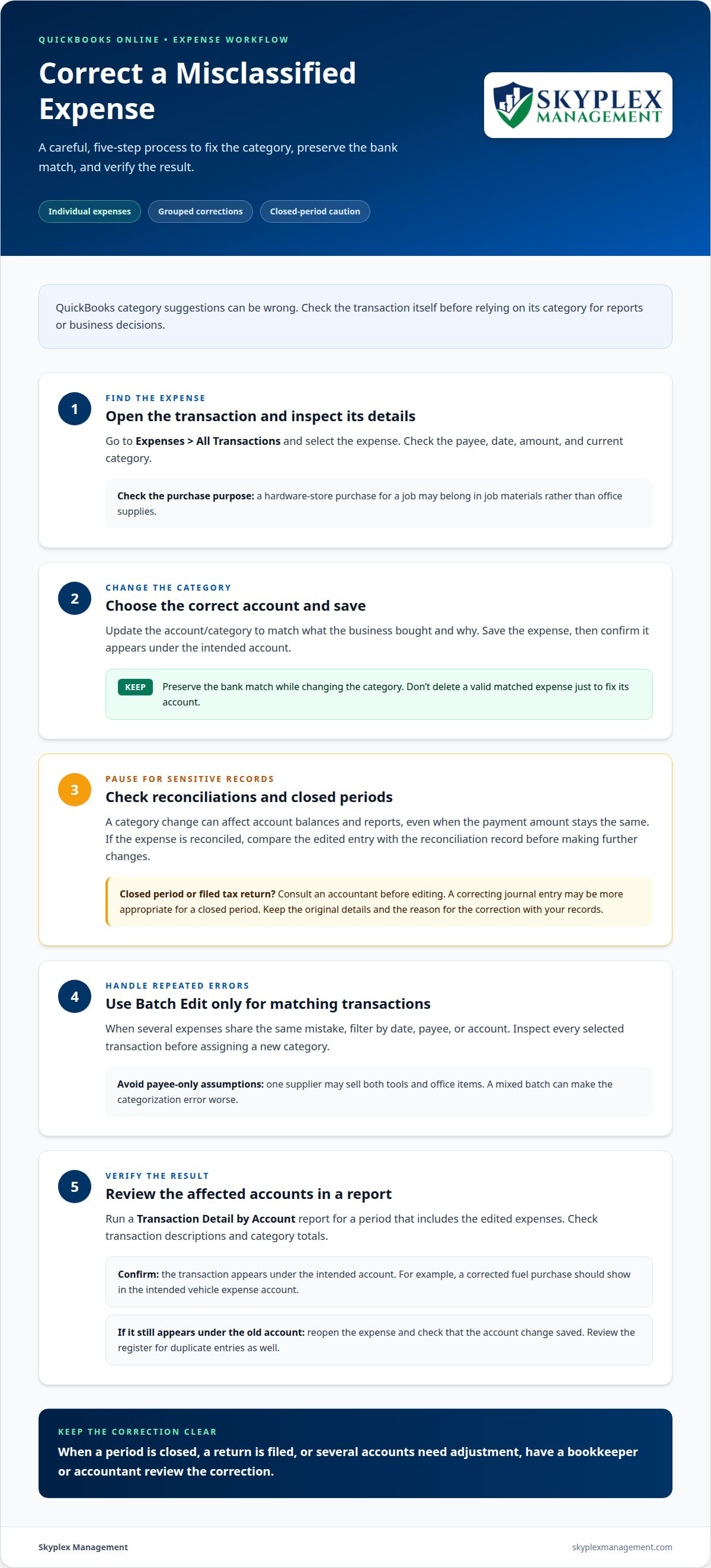
- Correct recent transactions individually. Open Expenses > All Transactions, then select the expense. Check the payee, date, amount, and current category. Choose the correct account and save. For example, a hardware-store purchase for a job may belong in job materials, not office supplies. You can also open an entry from a register or report, change its account, and save. Keep its bank match intact while changing the category. Then confirm the expense appears under the intended account.
- Handle reconciled expenses and filed returns carefully. Changing a category can affect account balances and reports, even if the payment amount stays the same. If the expense is reconciled, compare the edited entry with the reconciliation record before making further changes. If it falls in a closed period or was included in a filed tax return, consult an accountant before editing. A correcting journal entry may be more appropriate for a closed period. Keep the original details and the reason for the correction with your records.
- Investigate duplicates and incorrect matches. Compare the bank-feed item with the expense in the register. Check the date, amount, payee, and bank match. If two entries represent one payment, identify which record matches the bank activity before removing or excluding anything. Don’t delete a valid matched expense just to correct its category. If the expense itself is correct but its account is wrong, edit the account and preserve the match. Review the register afterward to check for a duplicate entry.
- Use batch editing for repeated errors. When several expenses share the same mistake, Batch Edit can update multiple transactions together. Filter transactions by date, payee, or account, then inspect each selection before assigning a new category. A batch containing different kinds of purchases can make the error worse. For example, one supplier may sell both tools and office items, so the payee alone may not identify the right account. After saving, review the affected entries and compare totals by account.
- Verify the correction with a report. Run a Transaction Detail by Account report to review the affected accounts and spot incorrectly coded payees. Set the report period to include the edited expenses, then check the transaction descriptions and category totals. A corrected fuel purchase, for example, should appear in the intended vehicle expense account. If an entry still appears under the old account, reopen it and check that the account change saved. Ask a bookkeeper or accountant to review corrections when the period is closed, the return is filed, or several accounts need adjustment.
Common causes of expense miscategorization
- Trace manual entry mistakes. A rushed entry can put a valid purchase in the wrong account. Similar account names make this easy. For example, a repair shop may code replacement parts as shop supplies. Review the receipt, business purpose, and account description together. Manual data entry is estimated to cause 10 errors per 1,000 transactions. Use a consistent naming approach for recurring expenses. Before saving, compare the selected account with the purchase’s actual use.
- Compare bank-feed details with the purchase. Imported transactions may arrive with an unsuitable category or incomplete description. A merchant name may not explain what the business bought. A hardware-store charge could be for tools, materials, or office supplies. Open the bank transaction and compare it with the receipt or invoice. Identify the actual item and business purpose before choosing an account. Don’t assume a familiar payee always means the same expense category.
- Review automated suggestions instead of accepting them blindly. QuickBooks may suggest categories based on previous transactions. A suggestion that fit an earlier purchase may not fit the current one. For example, a vendor previously used for equipment might also provide repair services. Check the transaction details before accepting the suggested account. If the purchase serves a different purpose, choose the category that reflects this transaction, not just the vendor’s history.
- Find rules that no longer fit current purchases. A transaction rule can repeatedly assign the wrong account when its conditions are too broad. A rule based only on a payee name might group different purchases together. Review the rule’s conditions and category when you notice the same vendor appearing incorrectly. Narrow the conditions to match relevant transaction details. If the business has changed how it buys or records items, update the rule accordingly.
- Check payee defaults and category changes. A payee’s saved default can affect later entries. If that default reflects an old purchasing pattern, new transactions may inherit the wrong account. Open the payee details and compare the default with current receipts. For a supplier that sells both job materials and office items, don’t use one default for every purchase. Choose the right category based on each transaction’s purpose.
- Look for repeated patterns before correcting entries. Compare several transactions from the same payee or bank-feed period. Note whether the problem follows one account, one rule, or one kind of purchase. Correcting only individual entries won’t address a rule or default that keeps repeating the error. If the underlying cause spans multiple transactions, get help reviewing recurring QuickBooks errors before they affect more records.
Creating and refining transaction rules
- Choose a repeatable transaction pattern. Start with a recurring charge, not every vendor. Review transaction descriptions and identify details that stay consistent. QuickBooks rules use conditions to assign a category. A monthly software subscription may have a consistent name and purpose, which can support a focused rule. A general retailer may sell unrelated items, so its name alone is not enough. Separate transactions with different business purposes before creating conditions. A narrow pattern gives the rule a clear purpose.
- Set conditions that distinguish the transactions. Use details that reliably identify the expense, such as the payee or description. Consider whether a condition might capture unrelated purchases. For example, a payment processor might collect revenue and charge fees. A rule based only on that processor’s name could misclassify both. Add conditions that distinguish fee transactions from other activity. Review actual imported examples before saving. The goal is to match the intended expense, not just a familiar merchant.
- Assign the category that reflects the purchase. Select the account that best describes the transaction’s business purpose. A recurring cloud-storage charge, for example, should use the account for that service. Check your Chart of Accounts before choosing. Similar account names can lead to inconsistent reporting. Then apply the rule to future transactions that meet its conditions. Keep a note of the rule’s purpose, especially if its name doesn’t clearly describe the category.
- Review new transactions before trusting the pattern. Compare transactions assigned by the rule with their receipts or business descriptions. Confirm the payee, amount, and category are consistent. If an entry is wrong, correct it and inspect the rule’s conditions. A condition that is too broad may repeat the same mistake. Update the rule, then review later transactions it affects. Fixing the rule addresses the pattern; editing one expense alone leaves the cause in place.
- Revisit rules when spending changes. A vendor may change its billing description, or your business may use it differently. Review transaction rules when a familiar charge lands in an unexpected account. Check the payee’s default too, since it can contribute to repeated categorization errors. Remove or refine conditions that no longer describe current activity. If several rules and past entries need coordinated review, get help reviewing QuickBooks transaction rules so corrections and future categorization stay aligned.
Automation can reduce miscategorizations by 95%. In QuickBooks Online, users set conditions and assign the correct category when creating transaction rules, then apply the rules to future transactions. When expenses are repeatedly miscategorized, review category rules and update the transactions. This keeps attention on both the rule design and the entries affected by recurring categorization problems.
Finding and editing expenses in QuickBooks Online
- Open the transaction list and narrow your search. In QuickBooks Online, go to Expenses > All Transactions. Use the available date, payee, and transaction filters to locate the entry. For example, search for the month and supplier shown on a receipt. Filtering first helps distinguish the purchase from similar charges and gives you a focused list to review.
- Match the entry to its supporting details. Select the expense and compare its date, amount, payee, description, and payment account with the receipt or invoice. A supplier name alone may not identify the purchase. For example, a building supplier could charge for job materials or office items. Use the purchase’s actual business purpose to determine its category.
- Separate personal spending from business expenses. Check receipts and transaction descriptions for personal purchases recorded in a business account. A personal meal or household item shouldn’t remain in an operating expense category. Classify it to the appropriate personal or owner account in your Chart of Accounts, rather than treating it as a business cost.
- Change the expense account. Open the transaction, find its category or account field, and select the account that reflects the purchase. Check the account name before saving. For example, assign a repair part to the relevant repair or parts account, not office supplies. Save the change, then reopen the entry to confirm it saved correctly.
- Preserve the bank-feed match. You can also open a transaction from a register or report, select the correct account, and save without removing its bank match. First compare the transaction amount and date with the imported bank activity. Changing the category corrects its account classification; removing a valid match can create extra reconciliation work.
- Review accounts that collect uncategorized entries. Open the Chart of Accounts and look for an account such as Uncategorized Income if a payment appears there unexpectedly. Edit the transaction’s account to the appropriate category. For an expense, inspect its current account and transaction details before reassigning it. Add a Chart of Accounts category only when it represents a distinct business purpose.
- Confirm the change in a report. Run a Transaction Detail by Account report and review the affected accounts. Check the payee, description, and category for each corrected entry. A transaction moved from office supplies should no longer appear in that account. If several transactions share the same error, review the group before using Batch Edit.
How to use the QuickBooks reclassify transactions tool
- Confirm the tool fits your QuickBooks access. QuickBooks Online Accountant users can use Reclassify Transactions to move multiple entries to another account. This is useful when a group shares the same coding error. For example, several supply purchases may have landed in an unrelated expense account. If you don’t use QuickBooks Online Accountant, correct entries through the transaction list instead. Choose the approach that suits your access and the scale of the correction.
- Define the transactions before changing accounts. Identify the date range, current account, and payees involved. Compare those details with receipts, invoices, or bank records. A shared payee doesn’t always mean a shared purpose. A supplier might sell both job materials and office goods. Separate those purchases before reclassifying anything. This preparation helps keep unrelated expenses from moving into one account.
- Filter and select only the affected entries. Open the Reclassify Transactions tool and narrow the list using the available filters. Review each matching transaction before including it. Confirm its date, payee, description, and current account. For example, check that the selected entries represent materials, not equipment purchases. Don’t rely on a vendor name alone. Careful selection keeps accurate entries from being swept into the same change.
- Choose the correct destination account. Select the account that reflects the purchases’ actual business purpose. QuickBooks’ tool can move selected transactions to another account. Before applying the change, compare the destination with your Chart of Accounts. Clear account descriptions help distinguish similar categories. If selected expenses have different purposes, split them into appropriate groups. Otherwise, reclassifying the whole selection to one destination could create another categorization error.
- Use the tool for periods that aren’t locked. Reclassify Transactions is suited to correcting entries in open periods. A locked period needs more care because changes can affect previously reviewed records. After reclassifying, run a Transaction Detail by Account report. Confirm the transactions appear under the intended account, and review account totals. If several accounts or a closed period are involved, have an accountant review the correction before changing records.
For periods that aren’t locked, use QuickBooks’ Reclassify Transactions tool to move transactions to the correct categories. Keep the correction focused on the specific coding issue you identified. Before changing anything, understand why each selected transaction belongs in a different category and which category best reflects its purpose. If you can’t explain the reason for a new classification, leave the entry out until you verify it. This keeps the decision grounded in the transaction rather than an assumption.
Afterward, review the result against the reason for the correction, not just the new category label. Check that the affected entries were treated consistently and that the change didn’t include items with a different purpose. Keep a concise record of what prompted the adjustment and the supporting information you used. If a selection or destination remains uncertain, pause and resolve the question before proceeding. A deliberate, limited correction is easier to assess and helps maintain a clear distinction between transactions in different categories.
Skyplex Management: Small Business Bookkeeping
Skyplex Management can help when expense errors extend beyond a few entries or keep recurring in QuickBooks Online. Its QuickBooks Online Support & Cleanup helps organize records and correct bookkeeping issues, while Small Business Bookkeeping provides ongoing support with transaction categorization and account records. If expense errors are affecting reports or making month-end work harder, Small Business Accounting can help bring records into clearer shape. Payroll Service is also available for businesses seeking payroll support alongside bookkeeping.
Consider getting help with a backlog, unclear account categories, or corrections across multiple transactions. Contact Skyplex Management to discuss the bookkeeping support that fits your needs.
Make each correction part of a stronger bookkeeping routine
Use each categorization correction as a prompt to improve how you maintain your books. If the same kind of expense keeps landing in the wrong account, trace the cause and update the process behind it. Set a regular review point, compare transaction details with receipts, and note recurring issues for follow-up. That turns learning how to fix miscategorized expenses in QuickBooks into a practical habit, not just a one-time cleanup.
For corrections affecting multiple accounts, past reporting, or business decisions, experienced bookkeeping support can help you assess the records and decide what needs attention next. Clear, consistently maintained books make it easier to use your financial information with confidence.
Take the next step at a pace that works for your business. More organized books start with one thoughtful review.
Frequently Asked Questions
Can I Edit Multiple Miscategorized Expenses at Once?
Yes, if the selected expenses need the same correction. Before making a bulk change, compare the selected entries’ business purposes, not just their payees. For example, a supplier may charge for both consumable supplies and equipment. Those purchases may belong in different accounts. A focused selection helps correct a group without moving valid expenses into the wrong category.
How do I change the category of an expense in QuickBooks Online?
Choose the account that best describes why the business incurred the cost. For example, a service company’s replacement part for a customer job may need a different category from a tool kept for general use. If account names seem similar, compare their descriptions in the Chart of Accounts first. Consistent category choices make expense reports more useful for understanding where the business spends money.
How do I recategorize multiple expenses in QuickBooks Online?
Group transactions by the accounting correction they need, rather than selecting every entry from one vendor. Batch Edit can handle a group with the same correction, while QuickBooks Online Accountant users can use Reclassify Transactions to move a batch to another account. For example, separate entries that need a materials category from those that need an equipment category. Review the resulting account totals to confirm the groups reflect distinct spending purposes.
How do I fix expenses posted to the wrong account without changing a bank reconciliation?
Keep the correction limited to the expense category when the payment details are already accurate. The category affects how the expense is reported, while the payment account and amount determine the cash activity. If you’re learning how to fix miscategorized expenses in QuickBooks for a reconciled period, avoid changing payment details as part of the correction. For closed periods or filed returns, consult an accountant about the appropriate accounting treatment.
Disclaimer
The information provided in this article is for general educational purposes only and should not be considered accounting, tax, or legal advice. Every business is unique. Consult a qualified accounting professional before making financial or tax decisions. Contact Skyplex Management for guidance specific to your business.


