

Spreadsheets can organize financial figures, but they leave much of the accounting process to manual work. Migrating from spreadsheets to accounting software changes how transactions are recorded, categorized, and turned into reports. The software may also automate tasks such as invoicing and expense categorization. The key is to move accurate information and map it to the right accounts.
It makes sense to want a clearer system without carrying old errors or confusing records into a new one. This guide explains the practical differences between spreadsheets and accounting software, what to review before switching, and how to prepare data for import. You’ll learn how to map familiar spreadsheet fields, such as customer names, dates, amounts, and categories, to records in the new system, then validate the results before relying on them.
Key Takeaways
- Review and clean spreadsheet records before moving them, so duplicates and inconsistent categories don’t carry into the new system.
- Map each spreadsheet field to its matching software record, then compare imported figures with approved source records.
- Validate opening balances, bank and cash figures, customer and supplier balances, and inventory before relying on the new reports.
- Choose which historical transactions to bring over based on the detail you need and the quality and format of your existing records.
- Assess your daily workflows, reporting needs, integrations, and chart of accounts before choosing and configuring accounting software.
1. What’s the difference between spreadsheets and accounting software?
A small business moving from spreadsheets should inventory and back up its files, clean the records, decide what to transfer, then import and validate the data. For example, move customer balances and account totals only after checking them against approved source records.
A spreadsheet stores figures in cells, so formulas and categories depend on how each workbook is built. Accounting software organizes transactions into records such as income, expenses, customers, suppliers, and accounts. Excel also requires manual entry and doesn’t readily show who changed financial data and when. As files and users multiply, that makes consistent review harder.
Accounting software can connect with business bank accounts, automate tasks such as invoice reminders, and generate reports from recorded transactions. These features don’t make the books accurate on their own. A bank feed may import a transaction, but someone still needs to review its date, amount, and category. Integrations also need to fit how the business records sales, expenses, and payroll.
Before migrating, list every source file and its purpose. A sales workbook might contain customer names, invoice dates, amounts, and payment status; an expense sheet might track vendors, categories, and receipts. Flag duplicate files, inconsistent labels, blank fields, and broken formulas. Standardize familiar values, such as customer names, and save a backup before editing.
Set the migration scope according to what the new system must support. Common records include the chart of accounts, customer and supplier details, open invoices and bills, cash and bank balances, and current-year transactions. A product-based business may also need item records and opening inventory. Compare each record with its source, and resolve unexplained balances before import.
Treat historical transaction detail as a separate decision. Moving every old row can add complexity, while transferring only summary balances may limit searches of older transactions. The right scope depends on the source format, data availability, volume, and reporting detail the business needs. Some businesses import current-year activity first and keep older records in an organized archive for reference.
Use a controlled import rather than copying every spreadsheet tab at once. Match each source column to a destination field, import a small sample, and inspect the results. Check that dates, customer names, account categories, and amounts transferred correctly. Reconcile imported totals against approved records before treating the migration as complete. This separates data cleanup from software setup and makes errors easier to trace.
2. Checking opening balances and reconciliations
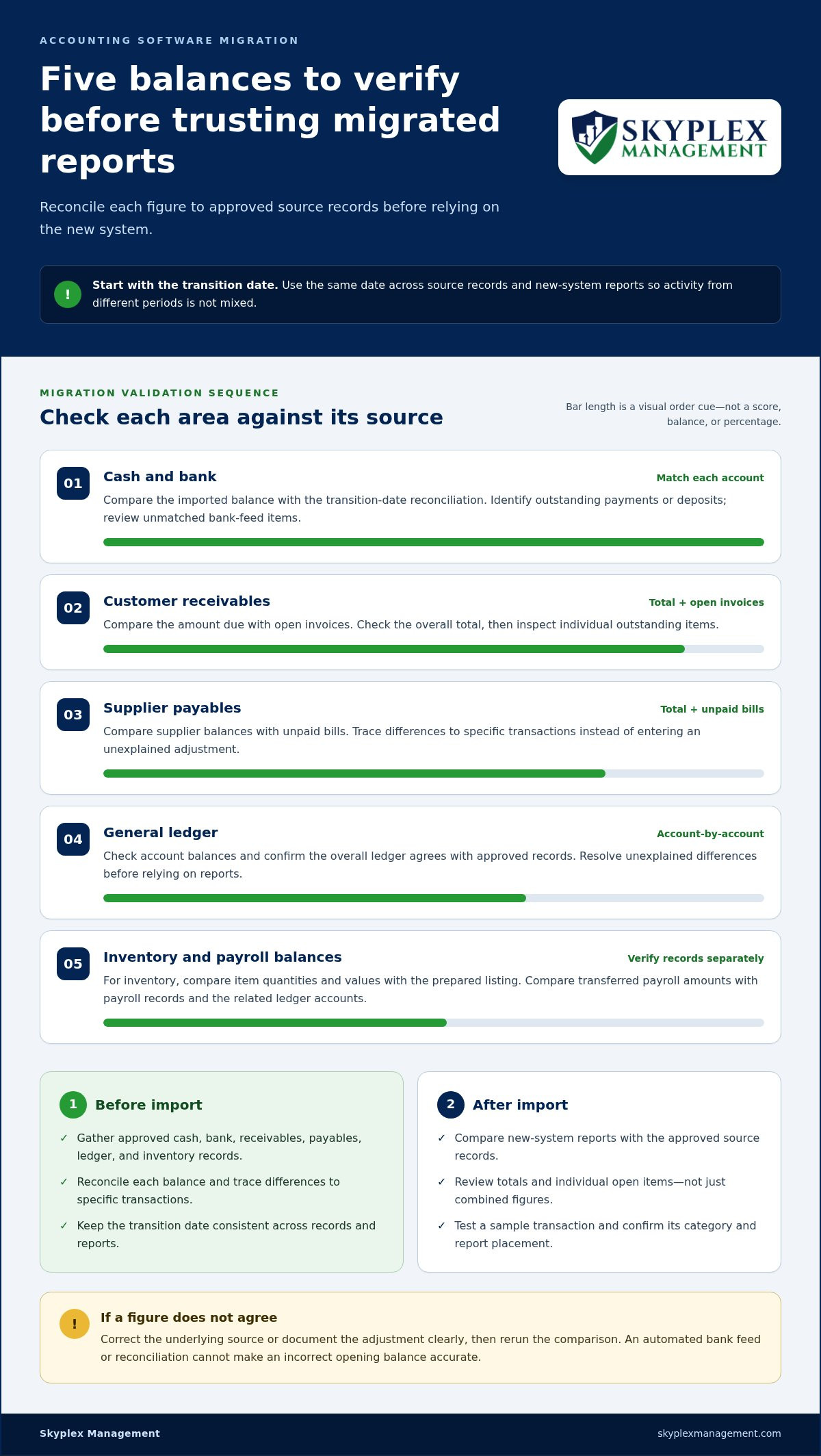
Opening balances establish the starting point in the new system. They should match records approved for the transition date, not estimates copied from an old spreadsheet. Gather bank and cash balances, customer receivables, supplier payables, general ledger balances, and inventory values. Keep the transition date consistent across reports and source records, or activity from different periods may be mixed.
Reconcile each balance before import. For a bank account, compare the book balance with the statement and identify outstanding payments or deposits. For customer receivables, compare the total due with open invoices; for payables, compare supplier balances with unpaid bills. If a spreadsheet shows a different total, trace the difference to specific transactions instead of entering an unexplained adjustment.
Inventory needs its own review because both quantities and values affect the opening position. Compare item records, codes, units, quantities, applicable tax rates, and opening values with approved inventory records. For example, a count of ten parts with an outdated unit cost may look complete but misstate inventory value. Confirm that item details and totals agree before importing them.
After import, compare migrated figures with the source records using reports from the new system. Review these areas separately:
- Cash and bank: match each account balance to the transition-date reconciliation.
- Receivables and payables: compare customer and supplier totals, then inspect individual open items.
- General ledger: check account balances and confirm that the overall ledger agrees with approved records.
- Inventory: compare item quantities and values with the prepared inventory listing.
- Payroll-related balances: compare any transferred payroll amounts with payroll records and the corresponding ledger accounts.
Automation can make later reconciliations easier, but it cannot correct an incorrect opening figure. Bank feeds may automatically match imported transactions, yet unmatched items still need review. Likewise, compare payroll reports and ledger balances as separate records so a difference doesn’t disappear within a combined total.
Test essential accounting processes before relying on the new reports. Enter or review a sample transaction, confirm how it is categorized, and check how it appears in the relevant report. If an opening balance is wrong, correct the underlying source or document the adjustment clearly, then rerun the comparison. This creates a traceable path from the source record to the final balance.
If opening figures span several spreadsheets or include unresolved differences, discussing the reconciliation process with an accounting professional can help clarify what needs review before the new system becomes operational.
3. Importing customers, vendors, accounts, items, and transactions
The main risks are duplicate records, misclassified transactions, and balances that don’t agree after import. Reduce these risks by cleaning source files, testing a sample in a trial environment, and comparing the results with approved records before going live.
Import master records before transaction details. Customer and vendor lists should have consistent names and identifiers, while the chart of accounts should reflect how the business reports income and expenses. Remove duplicates, identify inactive contacts, and resolve unclear account categories first. For inventory, review item names, codes, units, and tax rates so imported products connect to the right records.
Then decide which transactions need to move. Transaction-level migration is traditionally not recommended because it can be complicated and expensive. The useful scope depends on the source system, available data, file format, transaction volume, and historical detail needed for reporting. A practical approach is to import current-year activity first, then add older records only when they serve a clear business need. Keep other history in an organized, accessible archive.
Growing businesses can feel overwhelmed when several records and workflows change at once. A company with separate entities, for example, needs a clear way to keep each entity’s activity distinct. Map each entity’s accounts and transactions separately, then identify any intercompany charges or transfers. Record those transactions consistently in the relevant entity records, not as ordinary customer sales or operating expenses.
Include tax-related details in the scope review. If the business tracks payments that may require 1099 reporting, preserve the payee information and payment history needed for that work. Check vendor names and payment totals against source records before importing. Missing or duplicated vendor details can make later transaction tracking harder, even when the overall ledger totals appear correct.
For a controlled transition, test the import before committing the full dataset. Load a sample of customers, vendors, accounts, items, and transactions into a trial environment. Inspect representative records, then compare counts and totals with the source. Correct mapping errors and repeat the test before the live import. This can catch problems such as dates landing in the wrong field or inventory items being assigned to an expense account.
Some businesses run both systems in parallel for a couple of days or weeks to see whether figures match. Define which system is authoritative during that period, who enters transactions, and how differences will be resolved. Without clear rules, duplicate entries can create errors instead of exposing them. Keep a record of adjustments and the final transition point.
4. Assessing accounting requirements before choosing software
Start by listing the work your current spreadsheets support. Include invoicing, expense tracking, payroll, sales tax records, bank reconciliation, and month-end reporting. A service business may need job or customer tracking, while a retailer may need inventory records. This list helps distinguish essential features from tools that would add setup and ongoing administration without addressing a current need.
Small-business accounting software costs depend on the selected plan, user access, integrations, reporting features, and support needs. The exact cost depends on the situation and is provided after a quote request. Compare plan details with your daily workflows rather than choosing a platform by price alone.
Review the chart of accounts before configuring a new system. It determines how income, expenses, assets, and liabilities appear in reports. If a spreadsheet groups vehicle expenses under several inconsistent labels, decide which categories should remain separate and which should be combined. Also note the reports owners need, such as profit and loss, cash flow, or job-level results.
Compare practical features with your requirements list. Consider bank integration, invoicing, payment tracking, payroll tools, tax settings, mobile access, cloud storage, and reporting. Then assess implementation, daily usability, and ongoing administration. A feature matters when it supports a real task: bank feeds can reduce manual entry, while customer payment tracking can clarify overdue invoices.
Set tax, payroll, and sales tax settings according to the business’s actual records and established accounting treatment. Enter the correct business details, payroll accounts, pay schedules, and sales tax categories used in current records. Test representative transactions and review the resulting reports before relying on automation. Keep tax categories distinct from income and expense accounts so reports remain clear.
Choose a transition date that creates a clear boundary. Starting at the beginning of a month or quarter can make comparisons easier because the old and new records cover defined periods. Plan backward from that date: complete setup, prepare source records, test imports, and assign responsibility for entering transactions. Avoid switching during a busy close or payroll cycle if that would split routine work across systems.
Before moving, decide what the team will keep active in the old files and what will become an archive. Document who enters invoices, reviews bank activity, and approves payroll in the new platform. If a bookkeeper or accountant supports the business, share access early so the account structure and reports match the intended workflow. Start with core features, such as invoicing or bank feeds, then add others as the team becomes comfortable.
5. Mapping spreadsheet fields to accounting software
Field mapping translates spreadsheet columns into records in the new system. Start with a copy of each source file, then create a mapping sheet with three columns: spreadsheet heading, destination field, and treatment. For example, map “Client” to “Customer name,” “Invoice date” to “Transaction date,” and “Total due” to “Invoice amount.” This makes assumptions visible before import.
Match fields by meaning, not just by similar labels. A spreadsheet column called “Type” might contain a service name, payment method, or expense category. Check sample rows to understand what each value represents. Then assign it to the right destination, such as product or service, payment method, or account. If an old category has no clear equivalent in the chart of accounts, resolve it before import rather than sending it to a catch-all account.
Standardize formats before mapping. Use consistent date formats, remove extra spaces from names, and confirm that amounts use the same decimal and sign conventions. For example, one file may record a refund as a negative sale while another lists it as a positive amount in a “Refund” column. Decide how the destination system represents the transaction, then apply that rule throughout the file.
Match customer and vendor records carefully. Use a stable identifier, such as an existing customer number or vendor name paired with another identifying field, to find duplicates. Don’t merge two people simply because their names look alike. Review addresses, email details, and transaction history where available, then decide which record should remain active. Consistent names help invoices, bills, and later tracking connect to the right account.
Map transaction columns separately from contact details. An invoice file may need customer, invoice number, date, due date, income account, amount, and payment status. A bank expense file may need transaction date, payee, account, description, and amount. Put memo text in a description field, not an account field. If one spreadsheet row combines several expense categories, split it into separate lines only when the source records support that detail.
Test the mapping with representative rows, including an invoice, a paid bill, a refund, and an unusual transaction. Review each imported record in the software, then reconcile record counts and account totals against the source file. Investigate rejected rows, blank required fields, and duplicate warnings before importing the full dataset. Save the final mapping sheet with the source-file name and import date so future corrections have a clear reference.
Skyplex Management: Small Business Bookkeeping
Skyplex Management helps small businesses prepare to move from spreadsheets or organize their accounting afterward. Its Small Business Bookkeeping and Small Business Accounting services can help maintain clear records, while QuickBooks Online Support & Cleanup can address setup issues or disorganized books during a transition.
Consider support if customer balances, account categories, or imported transactions don’t line up, or if you need a consistent bookkeeping process. Payroll Service can also help keep payroll records within your accounting workflow. The goal is to make day-to-day financial information easier to manage and review.
A thoughtful next step can make your financial processes easier to manage and prepare them for what comes next.
Frequently Asked Questions
What’s the difference between spreadsheets and accounting software?
Spreadsheets organize information in cells, while accounting software connects records to accounting workflows and reports. In a spreadsheet, a payment might sit in a row with a manually entered category; in software, it can be linked to a customer, invoice, account, and payment status. That connection helps you review related activity together. Spreadsheets can still be useful for analysis, but they don’t replace a structured accounting record system.
Is a financial year-end the best time to migrate?
Year-end can provide a clear cutoff, but it isn’t the only practical time to switch. Starting at the beginning of a month or quarter can also clarify which system holds each period’s activity. Choose a date that gives you time to prepare records, test workflows, and avoid splitting a busy reporting or payroll cycle. The best timing is when your team can support consistent transaction entry and review.
How do you migrate financial data from spreadsheets to accounting software?
Begin by identifying the files and records that support current operations, then prepare a backup. Organize customer and vendor details, account categories, open invoices, bills, and any transaction history needed for reporting. Match each spreadsheet column to a destination field, test a sample import, and review the results. After loading the data, compare totals and selected records with their source documents before using the new reports to make decisions.
How should you clean and organize spreadsheet data before importing it?
Work from copies of the original files, then standardize names, dates, account labels, and number formats. For example, make sure “ABC Co.” and “ABC Company” refer to one intended customer record, not two separate customers. Remove blank rows, flag duplicates, and investigate formulas that return errors. Note any column whose meaning is unclear, such as “Type,” before assigning it to a software field.
Which accounting software supports spreadsheet imports and what file formats does it accept?
Import options and file formats vary by platform and record type. A program might offer a template for customer contacts but use a different process for transactions or inventory. Before preparing files, review the software’s import instructions and download its templates. Spreadsheet exports may use CSV or XLSX, but confirm the accepted format and required column headings for each import rather than assuming one file will work for every record.
What accounting software is best for businesses moving from spreadsheets?
The best fit depends on the records you manage and the reports you need. A service company may prioritize invoicing, customer balances, bank connections, and straightforward expense tracking. A business that sells products may also need inventory records. Compare each platform’s setup process, reporting, integrations, daily usability, and ongoing administration with your actual workflows. A bookkeeper or accountant can help assess whether the account structure supports how you review results.
How do you verify opening balances and historical transactions after migration?
Compare the new system’s account totals with approved records from the same transition date. Then inspect representative transactions, including a customer payment, supplier bill, refund, and bank withdrawal. Confirm that each appears in the intended account and period. For historical activity, compare reports covering the same date range in both systems. Investigate differences individually: a matching overall total can still hide transactions assigned to the wrong customer or category.
How long does an accounting software migration take, and when should you switch?
Many small businesses can move from Excel within a few days to a couple of weeks, depending on the data volume and detail required. Plan the switch for the start of a month or quarter when that creates a clean reporting boundary, and allow time for preparation and testing. Set a target to complete the move within a month or two. For a Cleveland-area business, the transition date should fit its reporting calendar and day-to-day workload.
Disclaimer
The information provided in this article is for general educational purposes only and should not be considered accounting, tax, or legal advice. Every business is unique. Consult a qualified accounting professional before making financial or tax decisions. Contact Skyplex Management for guidance specific to your business.


