

You finish a bank reconciliation in QuickBooks, but the difference isn’t zero. Or a reconciliation that was complete now looks wrong after a transaction was edited or deleted. It may be tempting to change the opening balance or add an adjustment to make the numbers match. The safest way to fix QuickBooks reconciliation errors is to find the transaction or record that caused the difference first.
If you’re unsure whether to edit a transaction, revisit an opening balance, or change a past reconciliation, pause before making changes. A quick fix can make the books harder to trust, especially when earlier periods are involved. You can correct the records, but the evidence should guide each change.
This guide shows you how to trace a discrepancy, review transaction changes, and correct the underlying issue while keeping a clear audit trail. You’ll also learn why a reconciliation adjustment shouldn’t be the default solution, how to protect completed reconciliations, and when to ask a bookkeeping professional to review the records before you act.
Key Takeaways
- Check the statement period, ending date, and ending balance before investigating individual transactions.
- Compare statement activity with QuickBooks records to identify what may be missing, duplicated, or changed.
- To fix QuickBooks reconciliation errors, trace the difference to its source instead of relying on an adjustment to make the balance zero.
- Keep relevant statements and note the reason for any confirmed correction to support a clear record of changes.
- Consider professional review when differences keep recurring or the issue involves an altered reconciliation or unclear opening balance.
QuickBooks reconciliation errors: what the difference means and why it matters
A QuickBooks reconciliation discrepancy is the difference between the transactions selected in QuickBooks and the ending balance on the financial institution’s statement for the same account and period. A nonzero amount is a reason to investigate. By itself, it doesn’t prove fraud, missing money, or a serious bookkeeping failure. An incorrect date, a transaction that hasn’t appeared on the statement yet, or an entry recorded for the wrong amount can all create a mismatch.
Reconciliation is different from categorizing transactions or matching downloaded bank activity. Categorizing assigns a transaction to an account, such as income or an expense. Matching connects an imported bank-feed item with a transaction already entered in QuickBooks. Reconciliation compares account activity with the statement to check whether the records agree.
What a QuickBooks reconciliation compares
In QuickBooks Online, compare the account activity recorded in QuickBooks with the deposits, withdrawals, and other items on the financial institution’s statement. Use the statement’s ending date and ending balance to define the period. For example, if a fictional statement closes April 30 with a balance of $8,420, use that date and balance, not a figure that includes May activity.
A transaction is cleared when it appears on the financial institution’s records for the period. An uncleared transaction hasn’t appeared there yet. That can be normal: a recent check or deposit may take time to post. Uncleared status alone doesn’t mean there’s an error.
Why accurate reconciliations matter to small businesses
A reliable reconciliation supports a more trustworthy view of cash and gives financial reports a sounder foundation. If a payment is missing, duplicated, or recorded for the wrong amount, the account balance may not accurately reflect available cash. That can make decisions about bills, purchases, or cash flow less dependable.
Unresolved differences can carry into later periods, making it harder to tell whether an issue is new or stems from an earlier entry. The IRS’s Publication 583 on starting a business and keeping records discusses keeping records that support items reported on tax returns. If a discrepancy affects records used for tax reporting, or you’re unsure how a correction could affect them, seek qualified accounting guidance. A careful review helps protect the records and clarify your next step.
How to find the cause of a QuickBooks reconciliation discrepancy
Before changing anything, confirm that the reconciliation uses the correct statement period, ending date, and ending balance. A statement entered with the wrong closing date can exclude transactions from the comparison or include activity from the next period. Check the statement itself rather than relying on a balance remembered or copied from another month.
Next, compare the statement line by line with the activity in the corresponding QuickBooks account. Mark the items that appear in both records and note what doesn’t match. Look for:
- A deposit or payment on the statement that’s missing from QuickBooks, or a QuickBooks entry that doesn’t appear on the statement.
- Duplicate transactions, including a bank-feed item entered separately instead of matched to an existing record.
- Different amounts or dates that may place a legitimate transaction outside the statement period.
- Activity recorded in a different QuickBooks account, such as a payment entered under the wrong bank account.
Keep the comparison in view as you investigate. Don’t edit, delete, or recreate a transaction just because it looks unusual. First confirm what happened against the statement and available supporting records.
Check for timing differences and missing activity
Compare deposits and withdrawals using both their transaction dates and the dates they appear on the statement. An outstanding check may be recorded in QuickBooks but not yet posted by the bank. A deposit in transit can work the same way. These timing differences may be legitimate, so don’t force them to clear just to eliminate a discrepancy.
Also check the statement for bank fees or interest entries that may not have been recorded in QuickBooks. If an item appears on the statement but not in the books, verify its details before adding an entry.
Look for changed transactions and opening balance issues
If the individual items appear to match, review the reconciliation report, where available, and transaction history for edits, deletions, or entries added after a reconciliation was completed. QuickBooks Online labels and report options can change, so use current in-product guidance to locate the relevant records rather than relying on outdated menu instructions.
Check the account’s opening balance too. A changed or incorrect starting balance can carry forward into later reconciliations. Don’t alter it to make the current difference disappear. First establish what changed by following QuickBooks guidance, especially if earlier periods were reconciled.
If the discrepancy involves older records or the cause remains unclear, professional review can help you trace the issue before making corrections. For support with QuickBooks records and bookkeeping, contact Skyplex Management to discuss the records involved.
Which QuickBooks reconciliation error are you seeing? Match symptoms to likely causes
The size and pattern of the difference can help narrow your search, but they don’t confirm the cause. Treat the symptom as a clue, then check the source records before changing anything.
| Symptom | Possible cause | First check | Caution |
|---|---|---|---|
| The difference is present as soon as reconciliation starts. | Incorrect statement ending date or balance, or an opening balance that changed. | Compare the entered statement details with the actual statement, then review the account’s starting balance and earlier reconciliation history. | Don’t change the opening balance just to make the current reconciliation work. |
| The difference matches a transaction amount. | A duplicate, omitted, or incorrectly recorded transaction. | Compare the transaction date, payee, amount, and account assignment with the statement and supporting records. | An equal amount is a clue, not proof. Confirm which entry is correct before editing or deleting one. |
| The difference relates to a statement item not found in QuickBooks. | The transaction may be missing, recorded in another account, or dated outside the period. | Search the relevant accounts and review dates and transaction details. | Don’t recreate an entry until you’ve ruled out an existing record elsewhere. |
| A transaction appears in QuickBooks but not on the statement. | It may be uncleared due to timing, or it may be an incorrect or duplicated entry. | Check the posting date and whether the item appears on a later statement. | An uncleared item isn’t automatically an error. Avoid forcing it to clear. |
| A completed reconciliation no longer agrees. | A previously reconciled transaction may have been edited, deleted, or added later. | Review reconciliation history and the transaction’s change history. | Preserve records and understand the impact before changing a prior period. |
Warning: An adjustment that makes the difference zero doesn’t prove the books are accurate. Confirm the cause first, or the adjustment may hide an error and make later records harder to trust.
When the difference matches one or more transactions
An exact match can point to a duplicate or a transaction omitted from QuickBooks. A difference equal to two related amounts may suggest that more than one entry is involved. Compare each candidate’s date, payee, amount, and account assignment with the statement, receipt, invoice, or other source record. Don’t delete an entry just because it looks redundant. Confirm that it’s incorrect and review its history first.
When a prior reconciliation no longer agrees
A later edit or deletion can affect a transaction that was already reconciled, changing how an earlier period appears. Save relevant statements and review the reconciliation and transaction history before correcting past activity. If differences in prior periods recur or you can’t identify what changed, pause before making more edits. A bookkeeping professional can help trace the history and assess the correction needed to fix QuickBooks reconciliation errors without creating further uncertainty.
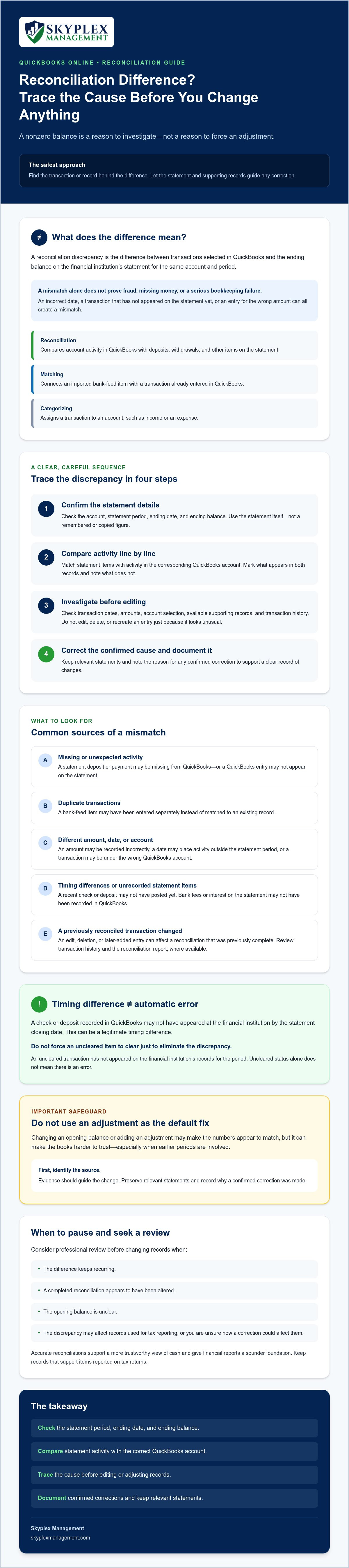
How to fix QuickBooks reconciliation errors safely, step by step
A careful correction starts with evidence, not an adjustment intended to make the difference disappear. Follow these steps to fix QuickBooks reconciliation errors while keeping the reason for each change clear.
- Preserve the records. Save the relevant bank or credit card statement and gather receipts, invoices, deposit records, or other documents connected to the disputed transactions. Note the reconciliation period and the difference you’re investigating.
- Verify the statement details. Confirm that the QuickBooks account matches the financial institution account. Check the statement period, opening balance, ending date, and ending balance against the statement itself. An incorrect date or balance can create a discrepancy even when transactions are recorded correctly.
- Isolate the cause. Compare each disputed statement line with QuickBooks activity and its supporting source document. Check for an omitted or duplicate entry, an incorrect amount or date, activity assigned to another account, or an item that hasn’t cleared yet. Don’t edit, delete, or recreate transactions while you’re still determining what happened.
- Correct only what the evidence supports. If a source document confirms that a transaction’s amount, date, or account is wrong, make the appropriate correction using current QuickBooks Online guidance. Avoid changing an opening balance or a prior-period transaction solely to force a zero difference. Don’t use an unexplained adjustment instead of finding the cause.
- Document and reconcile again. Record what was corrected, why the evidence supported the change, and which documents you reviewed. Then reconcile against the correct statement details and confirm that the displayed difference is resolved. Keep the statement and correction notes with your bookkeeping records.
Confirm the evidence before changing a record
For example, if a payment in QuickBooks doesn’t appear on the statement, check its date and supporting record before treating it as an error. It may simply be outstanding at the statement’s closing date. Similarly, a difference in the starting balance calls for reviewing earlier activity, not automatically replacing the balance. If the history is unclear or a correction affects a completed period, pause and seek qualified bookkeeping guidance.
Correct the confirmed cause and document the change
Make the smallest correction that accurately reflects the verified transaction. QuickBooks Online labels and procedures can change, so follow current in-product instructions for the specific record and reconciliation involved. Ongoing review through small business bookkeeping services can help keep reconciliations and financial reports consistent from period to period.
When to get QuickBooks reconciliation help for your business
Self-service troubleshooting may be reasonable when the discrepancy is limited to one statement period, you have the supporting documents, and you can identify a straightforward cause, such as a transaction entered with the wrong date. Pause before making changes if evidence is incomplete or a correction could affect completed periods. The goal isn’t simply to make the difference disappear. It’s to keep the records dependable.
Signs a discrepancy needs professional review
Consider asking a bookkeeping professional to review the account if you encounter any of these warning signs:
- The difference keeps returning, or several statement periods no longer reconcile.
- You can’t locate source documents needed to verify disputed transactions.
- Earlier reconciliations contain adjustments you can’t explain, or transactions appear to have been edited or deleted after reconciliation.
- The opening balance is unclear, or correcting the current period may affect earlier records.
In these situations, avoid using another reconciliation adjustment as a shortcut. An adjustment may change the displayed difference without explaining what caused it. If you’re unsure how to fix QuickBooks reconciliation errors without affecting reliable records, pause and get help before editing prior-period transactions.
How bookkeeping support can restore a reliable process
A bookkeeper can review statements, source documents, transaction history, and reconciliation patterns to help identify whether an issue is isolated or recurring. Regular monthly bookkeeping and outsourced accounting can support a consistent review process, while Financial Reporting & Advisory helps owners understand their records. For businesses with payroll activity, coordinated bookkeeping and payroll services can also help keep related transactions visible in the records.
Skyplex Management provides QuickBooks Online Support & Cleanup and serves small businesses across Northeast Ohio, including Cleveland, Akron, Medina, and Cuyahoga Falls. Explore the small business accounting services available to support your records.
If recurring discrepancies or unclear prior-period changes are making your books difficult to rely on, you can contact Skyplex Management to discuss QuickBooks Online support.
Keep Your QuickBooks Records Clear and Reliable
A nonzero reconciliation difference is a reason to investigate, not a reason to rush into an adjustment. Start with the statement details, compare transactions with source records, and correct only what the evidence confirms. If an earlier reconciliation or opening balance is unclear, pause before changing past records.
This careful approach can help you fix QuickBooks reconciliation errors while protecting the history behind your books. Consistent reconciliations also support more dependable financial reports and clearer decisions about your business’s cash.
Skyplex Management provides QuickBooks Online support and cleanup, historical data assistance, small business bookkeeping, and financial reporting for businesses across Northeast Ohio. If you’d like help tracing a discrepancy or improving your bookkeeping process, reach out to discuss your situation.
With the right records and a methodical review, you can move forward with greater confidence in your numbers.
Frequently Asked Questions
Why does my QuickBooks reconciliation have a difference?
A difference means the activity selected in QuickBooks doesn’t currently match the financial institution’s statement for that period. Common causes include an incorrect statement date or ending balance, missing or duplicate transactions, an amount or date changed in QuickBooks, or an item that hasn’t cleared yet. Start by verifying the statement details, then compare the statement line by line with QuickBooks. A nonzero difference calls for investigation, not an automatic assumption that money is missing.
How do I find a missing transaction in QuickBooks Online?
Compare the statement line with activity in the correct QuickBooks account, then search by amount, date, and payee. Expand the date range if the item may have been recorded in another period, and check other accounts if it could have been assigned incorrectly. Review the transaction list and downloaded bank activity for an existing entry that hasn’t been matched. Confirm against a statement or source document before adding a transaction to avoid creating a duplicate.
Can I delete a reconciled transaction in QuickBooks?
You may be able to delete a transaction, but doing so can affect a completed reconciliation and the records that depend on it. Don’t delete it just because it appears duplicated or incorrect. First compare it with the statement and supporting documents, then review its history and determine whether another entry represents the same activity. If the transaction is confirmed wrong, use current QuickBooks guidance to correct it and document the reason, especially if it belongs to an earlier period.
What should I do if a previous QuickBooks reconciliation is incorrect?
Pause before changing earlier transactions. Save the relevant statements and review the prior reconciliation and transaction history to determine what is wrong and when the records changed. Check whether an edit, deletion, or later entry affected the earlier period. Avoid making another adjustment simply to force the difference to zero. If you can’t identify the cause, or multiple completed periods are affected, ask a bookkeeping professional to review the records before proceeding.
Should I enter a reconciliation adjustment to make the difference zero?
Not as a shortcut. An adjustment can make the displayed difference zero without correcting the transaction or record that caused it, leaving the underlying issue unresolved. First verify the statement date and ending balance, compare activity, and investigate likely omissions, duplicates, or changed transactions. If the records support a correction, address the confirmed cause and document why. If you can’t establish the cause, pause and seek qualified bookkeeping guidance rather than plugging the difference.
How do I correct a QuickBooks opening balance discrepancy?
First confirm that the opening balance is actually wrong by comparing it with the account’s prior records and reconciliation history. Look for earlier changes or transactions that may have altered the starting point. Don’t replace the balance just to make the current reconciliation agree, since that can affect later periods and financial reports. If the account history is unclear or previously reconciled periods are involved, follow current QuickBooks guidance and consider professional review before making a correction.
When should I hire someone to fix QuickBooks reconciliation errors?
Get professional help if differences keep recurring, several periods no longer reconcile, source documents are missing, or prior reconciliations contain unexplained changes or adjustments. Skyplex Management provides QuickBooks Online support and cleanup, historical data assistance, bookkeeping, and financial reporting to small businesses across Northeast Ohio, including Cleveland, Akron, Medina, Strongsville, Brecksville, Hudson, Stow, Cuyahoga Falls, Fairlawn, Brunswick, Wadsworth, North Royalton, Canton, Wooster, Richfield, Macedonia, Broadview Heights, and Solon. A review can help clarify the next steps before records are changed.
Disclaimer
The information provided in this article is for general educational purposes only and should not be considered accounting, tax, or legal advice. Every business is unique. Consult a qualified accounting professional before making financial or tax decisions. Contact Skyplex Management for guidance specific to your business.


