

A QuickBooks account can be active and still produce reports that don’t reflect how your business works. A thoughtful quickbooks online setup for small business connects everyday activity to clear accounts, consistent transaction workflows, and accurate starting records. When the setup fits your operations, it’s easier to understand what the numbers are telling you.
The right setup depends on how your business earns revenue, pays expenses, manages payroll, and tracks work. This guide walks through the decisions that matter: choosing account categories, entering opening balances, connecting transactions, and checking reports. It also explains how to build routines that keep your records useful after setup, rather than letting bookkeeping fall behind.
Skyplex Management helps small businesses across Northeast Ohio set up QuickBooks Online around their real workflows, then maintain that foundation through bookkeeping, support, and financial reporting. The goal is a practical system that supports clearer day-to-day decisions.
Key Takeaways
- Build your quickbooks online setup for small business around how your company earns revenue, spends money, and tracks its work.
- Choose account categories and starting records carefully so your financial reports have a dependable foundation.
- Match transaction workflows to your business, whether you provide services, sell products, or manage projects.
- Before relying on reports, compare QuickBooks balances with source statements and review how transactions are categorized.
- Use regular bookkeeping to keep records consistent, and distinguish routine transaction work from cleanup or catch-up needs.
Why QuickBooks Online Setup for a Small Business Starts with Your Books
Creating a QuickBooks Online account is only the starting point. A useful setup organizes business records, establishes a repeatable way to record activity, and enters accurate opening balances. Opening balances are the amounts in your accounts on the date you begin tracking them in QuickBooks. These choices shape your reports and determine how easily you can review transactions later.
The right quickbooks online setup for small business depends on what the company does and what the owner needs to understand. A consultant who invoices clients has different tracking needs from a retailer managing products or a contractor organizing project costs. QuickBooks is one of several versions of accounting software discussed on the QuickBooks Wikipedia page, but dependable reports start with business-specific bookkeeping decisions, not account creation alone.
For example, a service business may buy materials for client work and office supplies for general use. If both purchases are routinely categorized as general expenses, the owner may not be able to review the cost of delivering services clearly. The transactions are recorded, but the information is less useful for evaluating job costs or planning future work. Consistent categories and workflows make everyday activity easier to interpret.
What a useful QuickBooks setup should accomplish
A well-planned setup gives transactions a consistent place in the books, making routine review more manageable. Categorization means assigning each transaction to an appropriate account, such as a revenue or expense category. When similar activity is handled consistently, you can compare income and costs without having to decode a jumble of entries each time you review the books.
Reports are most helpful when you understand what they show. A profit and loss report summarizes income and expenses over a period. A balance sheet shows what the business owns and owes at a particular point in time. That distinction helps you ask useful questions: Are operating costs rising? Do the business’s cash and expected obligations need closer attention? Skyplex Management’s small business bookkeeping support helps keep records organized after the initial configuration.
What to understand about your business before setup
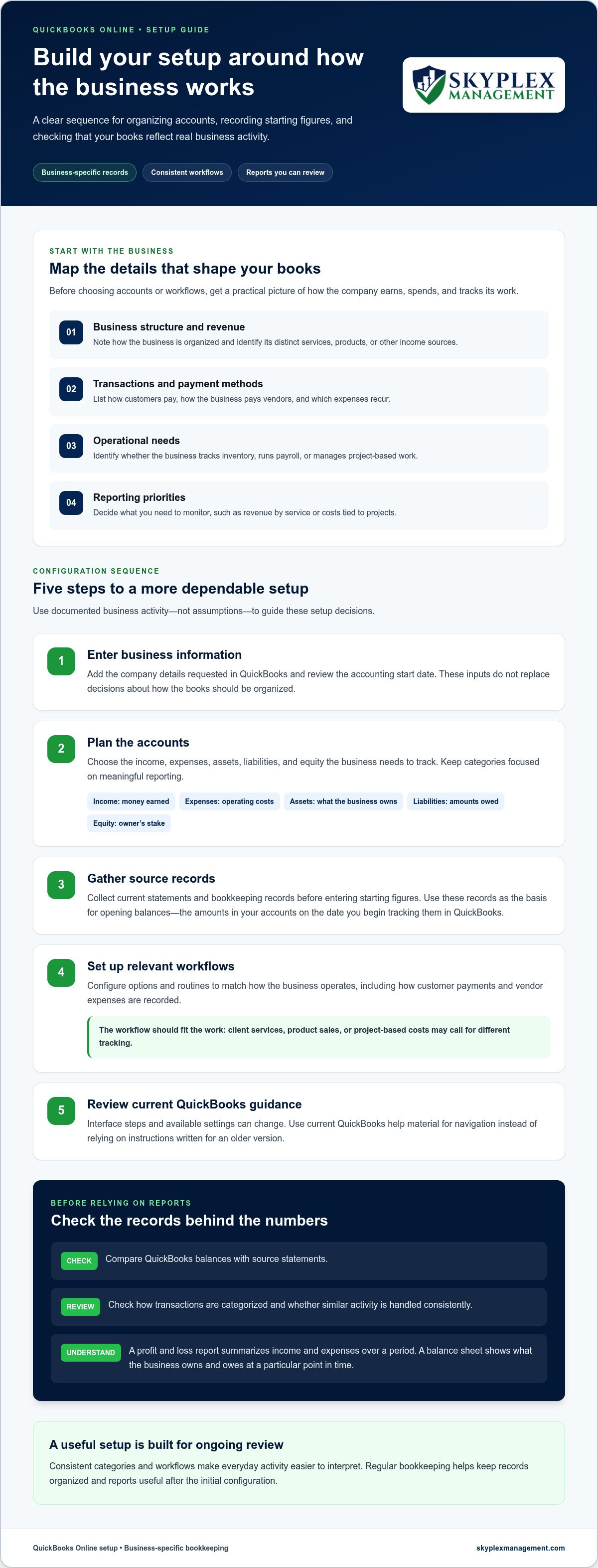
Before configuring accounts and workflows, gather a practical picture of how the business operates. These details help you decide what to record and review:
- Business structure and revenue activities: Note how the business is organized and how it earns money, including distinct services, products, or other income sources.
- Transaction volume and payment methods: List how customers pay, how the business pays vendors, and which expenses recur. This helps you plan how transactions will be recorded and reviewed.
- Operational needs: Identify whether the business tracks inventory, runs payroll, or manages project-based work. These activities can call for different records and review routines.
- Reporting priorities: Decide what you need to monitor, such as revenue by service or costs tied to projects. A clear purpose helps prevent unnecessary accounts and confusing reports.
These planning steps keep the setup grounded in actual business activity. If existing records are difficult to interpret, QuickBooks Online setup and cleanup support can help align the account structure with the work the business performs.
Configure QuickBooks Online: Accounts, Opening Records, and Settings
Once you’ve mapped the business’s activities and reporting needs, configure QuickBooks in a deliberate order. Company details, such as the business name and contact information, are separate from accounting decisions, such as how transactions will be categorized and when bookkeeping will begin. Your quickbooks online setup for small business should reflect documented activity, not assumptions made while clicking through an onboarding screen.
- Enter business information. Add the company details requested in QuickBooks and review the accounting start date. These are setup inputs, not a substitute for deciding how the books should be organized.
- Plan the accounts. Review the income, expenses, assets, liabilities, and equity the business needs to track. Keep the list focused on categories that support meaningful reporting.
- Gather source records. Collect current statements and bookkeeping records before entering starting figures. Use these records as the basis for opening balances.
- Set up relevant workflows. Configure options and routines that match the business, such as how customer payments and vendor expenses will be recorded.
- Review current QuickBooks guidance. Interface steps and available settings can change. Use current QuickBooks help material for navigation rather than relying on instructions written for an older version.
Build a chart of accounts that reflects real activity
The chart of accounts is the list of categories used to organize financial activity. Income records money earned; expenses capture operating costs; assets represent what the business owns; liabilities represent amounts it owes; and equity reflects the owner’s stake in the business. A service company might separate consulting revenue from reimbursed costs, while a product seller may track product sales and inventory-related accounts. Add categories when they support a clear reporting need. Duplicate or overly detailed accounts can make reports harder to interpret, especially if no one uses them consistently.
Prepare opening balances and core account settings
Opening balances are the starting figures entered for accounts when bookkeeping begins in QuickBooks. Use dependable records, such as bank and credit card statements, loan statements, and existing bookkeeping reports, and choose a consistent start date. Match each opening figure to the relevant source record as of that date. If records don’t agree, resolve the difference before relying on the balance. The IRS guidelines for business recordkeeping explain how organized records support tracking income and expenses and preparing financial statements.
Review other core settings with the same care. Business structure, transaction patterns, payroll, and inventory can affect what the books need to capture. Tax elections and accounting methods require business-specific consideration, so don’t choose them by guesswork or solely because a software prompt offers an option. If you’d like help aligning accounts and starting figures with your records, contact Skyplex Management about QuickBooks setup.
Match QuickBooks Online Workflows to Your Small Business
After organizing accounts and starting records, decide how everyday activity will move into and through QuickBooks. A workflow is the repeatable process for recording a transaction, assigning it to the right category, and reviewing it. The right quickbooks online setup for small business depends on how you earn revenue, fulfill work, collect payment, and manage costs. Configure for the work you actually do, not every feature or connection that might be available.
| Business activity | Workflow focus | Useful review question |
|---|---|---|
| Service business | Separate service income and recurring operating expenses. | Which services generate revenue, and what does it cost to deliver them? |
| Product sales | Coordinate sales records with inventory and product-related costs. | Do sales and product costs make sense together? |
| Project-based work | Organize income and costs by project where that detail supports decisions. | Which projects are on track, and which need review? |
Set up income and expense tracking around how you operate
Different revenue streams can disappear into a single total if they’re recorded under one broad category. A service company may want to distinguish consulting from recurring maintenance, while a product seller may need to review sales alongside the costs of items sold. For project work, consistent project names and cost descriptions make activity easier to review. Choose useful detail without creating categories you won’t maintain.
For example, an auto repair shop in Akron could record repair labor and parts in a way that helps the owner review each type of revenue and its related costs. The structure should fit the records the business can reliably maintain. Use consistent transaction descriptions, categories, and project names so similar activity appears together. Otherwise, small naming differences can scatter related transactions across reports.
Choose integrations and connected workflows deliberately
Start with the transactions that matter most. If the business runs payroll, tracks inventory, accepts electronic payments, or relies on project-management tools, those processes may shape how records enter QuickBooks. Check current QuickBooks guidance before relying on a particular feature or integration, since available options and interface steps can change. Add a connection only when it supports an actual workflow and you understand how its data will be recorded.
More connections don’t automatically mean cleaner books. If a payment tool and a manual entry both record the same sale, income may be duplicated. If no one reviews imported transactions, errors can go unnoticed. Decide which system is the source for each type of information, who checks the records, and how exceptions are corrected. These responsibilities matter even when a process is partly automated.
Keep the routine manageable: identify where each transaction starts, how it reaches the books, and who reviews its category and supporting details. Regular small business bookkeeping helps maintain those routines as activity changes, so reports remain easier to review as the business grows or adds new ways to sell.
Launch and Check Your QuickBooks Online Setup Before Relying on Reports
Before using QuickBooks reports to guide decisions, check whether the activity in the system agrees with the records behind it. A careful launch review can reveal missing transactions, duplicate entries, or starting figures that need attention. Treat it as a practical check of the setup, not a guarantee that every future entry will be correct.
Run a first-pass review of transactions and balances
Review connected accounts and imported activity first. Confirm that expected transactions are present, dates and amounts appear reasonable, and similar transactions use consistent categories. Look for uncategorized items, possible duplicates, and balances that are unexpectedly high, low, or negative. Don’t force an entry into a category just to clear a review list. Identify what the transaction represents first.
Next, compare each QuickBooks account balance with its supporting source record for the same date. For a bank or credit card account, use the statement balance and activity. For a loan, compare the recorded balance with the lender’s statement. Reconciliation means matching transactions in QuickBooks to an external statement and resolving differences so the recorded balance is supported by that source. If the amounts don’t agree, investigate timing differences, omitted activity, duplicates, or an incorrect opening figure rather than changing a balance without explanation.
Use early reports to spot setup problems
After reviewing key accounts and transactions, run a profit and loss report for a period with enough recorded activity to make the results meaningful. Ask whether income appears in the categories you expect and whether expenses are recognizable. A large amount in a vague or uncategorized line may point to a classification issue, not an unusual business trend. If the report doesn’t tell a clear story, revisit the transaction details and account structure.
Then review the balance sheet, which summarizes assets, liabilities, and equity at a particular date. Each balance should have an understandable basis in a statement, transaction history, or other business record. Investigate unexpected balances, especially amounts that remain in holding or clearing accounts without an explanation. A payment recorded twice can distort cash or income, while an unsupported opening balance can make the overall picture unreliable. For any unclear balance, trace it back to the underlying transactions and records.
A sample month-end review can follow a steady routine without treating any particular day as a universal deadline: review newly imported activity, categorize and investigate exceptions, compare cash and credit card balances with statements, review loan balances, then scan the profit and loss and balance sheet for unusual items. Keep notes about unresolved questions so they can be followed up instead of forgotten.
If you want a bookkeeping professional to review your QuickBooks records and reports, contact Skyplex Management for QuickBooks support.
Keep QuickBooks Online Useful with Ongoing Bookkeeping Support
A solid setup needs regular attention as the business changes. New services, different payment routines, or added staff can affect how transactions are recorded and what owners need to see in their reports. Ongoing bookkeeping helps maintain consistent records, while periodic review makes it easier to notice when the system no longer fits the way the business operates.
Routine bookkeeping and cleanup address different needs. Routine work keeps current transactions organized. Cleanup or catch-up work addresses incomplete or disorganized records from earlier periods, such as transactions that haven’t been reviewed or balances that are difficult to explain. Identifying which kind of help is needed makes the next step clearer.
When professional QuickBooks support can help
Professional support can be useful when you’re starting a business, taking over an existing QuickBooks file, or finding that reports aren’t answering your questions. Skyplex Management provides QuickBooks Online setup, support, and cleanup, along with small business bookkeeping and accounting. The firm also supports related financial operations through Payroll Services, Financial Reporting & Advisory, and Outsourced Accounting & Controller Services.
For a business that has fallen behind, historical cleanup can organize older records before regular bookkeeping resumes. Once the books are current, ongoing support helps maintain consistent practices as transactions and business needs evolve. Regular attention can reduce the time an owner spends sorting through records and keep financial information useful for routine decisions.
Make the next step clear for Northeast Ohio business owners
Skyplex Management supports small businesses across Northeast Ohio, including Cleveland, Akron, Medina, and surrounding communities. Its small business accounting services help owners connect bookkeeping with financial reporting and day-to-day operations.
Before seeking support, note what’s creating the most friction: transactions that are hard to classify, records that have fallen behind, or reports that don’t help you make decisions. A clear description of the problem gives the conversation a useful starting point. A quickbooks online setup for small business should stay aligned with the company’s actual work, even as that work changes.
If you’d like to discuss your QuickBooks setup, cleanup, or bookkeeping needs, contact Skyplex Management.
Keep Your Financial System Ready for What’s Next
Your bookkeeping system should keep pace as the business changes. A new revenue stream, a different way of collecting payments, or a shift toward project-based work can affect how useful your records are. Revisit your processes when operations change, rather than waiting until reports become difficult to interpret.
A thoughtful quickbooks online setup for small business gives you a framework to build on, not a set of rules you can never adjust. Make sure the people handling transactions know how to apply that framework consistently. If setup decisions, older records, or ongoing bookkeeping are taking time away from running the business, experienced accounting support can help clarify where to focus.
Skyplex Management supports businesses across Northeast Ohio with QuickBooks Online setup, support, and cleanup, along with bookkeeping and accounting services. Discuss your business’s needs and identify a practical path forward.
To put a clearer QuickBooks process in place, contact Skyplex Management about your setup, cleanup, or bookkeeping needs.
Frequently Asked Questions
Can I set up QuickBooks Online myself, or do I need a bookkeeper?
You can set up QuickBooks Online yourself if your business has straightforward transactions and you can maintain the records consistently. The software won’t decide whether your categories, starting figures, and review routines fit your business. A bookkeeper can help if you’re unsure how to structure accounts, have prior records to bring in, or need reports you can rely on. A tailored quickbooks online setup for small business starts with understanding the work and records involved.
What information should I gather before setting up QuickBooks Online?
Gather your business identification details, recent bank and credit card statements, loan records, and any existing bookkeeping reports. A current customer and vendor list can help you enter names consistently, while sample invoices and expense receipts show how money moves through the business. If you use payroll or track products, collect the related records too. Having these materials ready makes setup decisions easier to base on actual activity rather than memory.
Can QuickBooks Online track inventory for a small business?
QuickBooks Online may support inventory tracking, but available functions can depend on the current subscription and product setup. Before relying on it, identify what you need to track: item names or codes, quantities purchased and sold, and how you’ll verify stock on hand. For a shop with many product types, write down how staff record purchases, sales, returns, and count corrections. That workflow helps you assess whether the available tools fit your operation.
Is QuickBooks Online different from QuickBooks Desktop?
Yes. QuickBooks Online is accessed through an internet-connected browser, while QuickBooks Desktop is installed and used on a computer. The products can differ in interface, workflows, and available tools, so instructions for one version may not apply to the other. If you’re moving from Desktop, first review how existing records will be handled and which processes your business depends on. That comparison can help you plan the transition without assuming the versions work identically.
Can QuickBooks Online connect to my business bank account?
QuickBooks Online can connect to supported financial institutions, but connection availability and setup can vary. You can also enter transactions using records from your bank if a connection doesn’t fit your workflow. Either way, review imported or entered activity against statements, and don’t assume a connected feed alone means your books are complete. A business-only bank account can also make it easier to distinguish company transactions from personal spending.
How do I use QuickBooks Online for more than one business?
Keep each separate business’s transactions and financial records distinct, with reports that clearly belong to that business. QuickBooks Online arrangements for managing multiple businesses can depend on current product options and access settings, so plan the structure before entering transactions. Don’t combine separate businesses in one set of books just for convenience. If you operate multiple locations under one business, decide what location-level information you need to review and how you’ll record it consistently.
Does QuickBooks Online replace an accountant or bookkeeper?
No. QuickBooks Online helps record activity and produce reports, but it doesn’t provide professional judgment about unusual transactions, record problems, or what a report means for your business. Skyplex Management provides QuickBooks support, cleanup, bookkeeping, and accounting for businesses in Cleveland, Akron, Medina, Strongsville, Brecksville, Hudson, Stow, Cuyahoga Falls, Fairlawn, Brunswick, Wadsworth, North Royalton, Canton, Wooster, Richfield, Macedonia, Broadview Heights, and Solon. Professional support can help you keep records useful as needs change.
Disclaimer
The information provided in this article is for general educational purposes only and should not be considered accounting, tax, or legal advice. Every business is unique. Consult a qualified accounting professional before making financial or tax decisions. Contact Skyplex Management for guidance specific to your business.


